
19 min read
What's new in 5.3.7?
Weissr has a new look. Version 5.3.7 brings the new logo, font and brand colours to every module: Capex Management, including Capital Budgeting, Capex Strategy and Administration. It also gives project teams in Capex Management two new ways to follow a project after approval: a contingency drawdown record and monthly progress tracking with a progress S-curve. The expenditure grid now shows actual months and year totals while you edit, calculated values are logged in the request log, Power Mode can show how requests relate to each other, and requests can link to files in SharePoint and OneDrive. In Capex Strategy, the new process rail shows where each alternative sits in the strategy process, and External Data cells can link to the Base Alternative. The AI chat is now called Weissr Assistant and works in Capex Strategy too. The release also includes performance improvements and bug fixes for issues from earlier versions.
All applications
A new look for Weissr
Weissr launched its new brand on 8 October 2026, and the product now matches the website. The logo, the font, the navigation and the main colours are new. Layouts, icons and chart colours stay as they are, so every screen works the way you know it.
Why a new brand
Weissr is now The Capex Platform: one platform for capital-intensive companies that connects capex strategy, capital budgeting and capex management. Before, we described Weissr as separate modules, and it was up to you to see how they fit together. The new brand starts from one idea: capital allocation is strategy.
The brand makes three promises, one for each group of people who work in Weissr:
Strategic Clarity for CEOs, group CFOs and capex directors: see where capital creates the most value across your assets.
Decision Confidence for CFOs, FP&A directors and group controllers: investment decisions that are consistent, traceable and controlled.
Capital Efficiency for capex controllers and analysts: less manual spreadsheet work and numbers you can trust.
We chose the new direction with the same method Weissr uses for capex strategy. We started from what happens if nothing changes, compared the alternatives, and picked the one that is best for the whole company over time.
👉 Learn more about the new brand in an article by our CEO, Alexander Edström
📍 What's new
New logo and favicon: The new Weissr logo is shown in the navigation, on the login page, on the application selection page, and on the error, email approval and exchange rates pages. The browser tab shows the new favicon.
New font: Text across the product uses the font from the new Weissr brand.
New navigation and colours: The navigation bar, buttons, links and selected rows use the colours of the new Weissr brand. Text links in running text and grid cells are underlined, so you can tell them apart from body text.
Administration in the new brand: Administration uses the same colours as Capex Management and Capex Strategy.
PDF exports: Standard Capex Management PDF exports show the new logo in the footer. If your company has uploaded its own logo, the footer keeps showing it.
Weissr Light by default: When no theme is saved in the browser, you see the Weissr theme in Light, even if your computer is set to dark. If you already picked Classic or Dark, your choice is kept.
Theme hint: The first time you open Capex Management or Capex Strategy after the upgrade, a hint at your initials explains the new look. It shows once per user.
📌 Note: Decision PDFs saved before the upgrade keep the old logo. The theme is saved per browser, so a user who picked Classic sees Weissr Light again in a new browser.
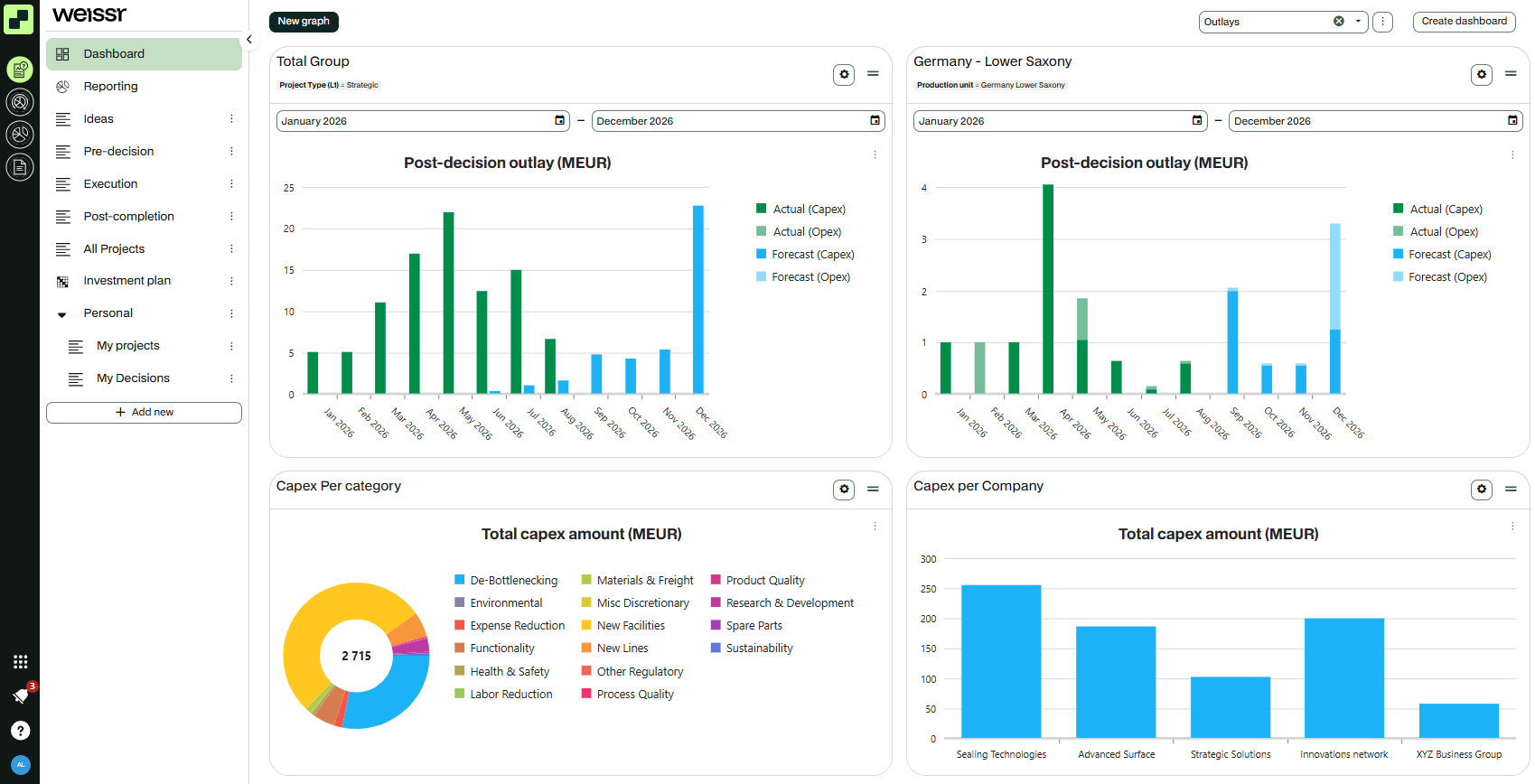 Capex Management with the new logo, navigation and colours.
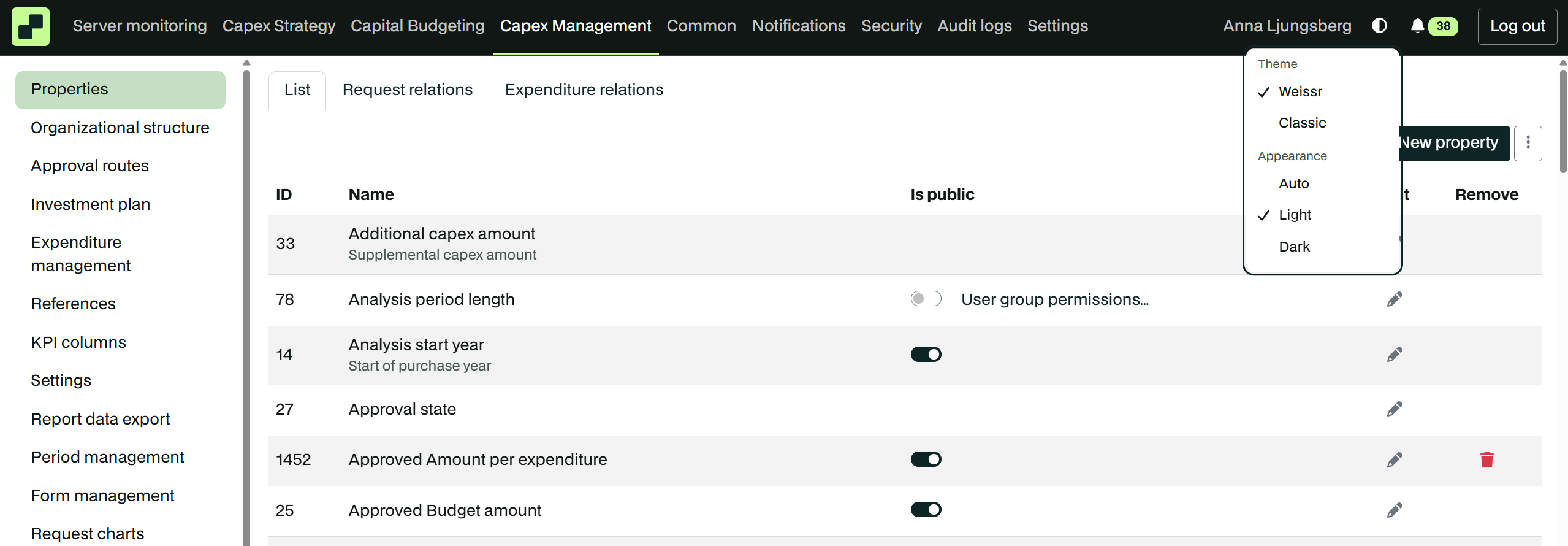 Administration with the same new colours as Capex Management and Capex Strategy.
Theme and appearance
To change the look, click your initials in the navigation bar. Under Theme, choose Weissr or Classic. Under Appearance, choose Light, Dark or Auto. Auto follows your computer's setting.
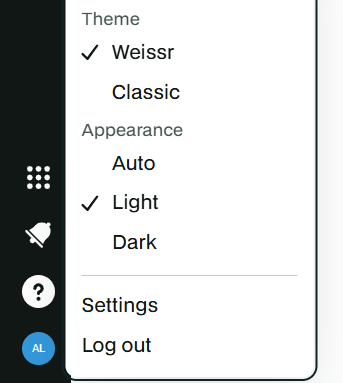 The user menu, where you choose the theme and the appearance.
Coming in later versions
This is the first step in bringing the new Weissr brand into the product. More of the interface will follow over the next versions, a few areas at a time, so each change is small and easy to get used to. How you work and your data stay the same.
💡 Info: Classic, the look from before, stays available from the user menu while these changes roll out, and keeps the previous font. It will be removed in a later version.
Weissr Assistant
The AI chat is now called Weissr Assistant, and it works in Capex Strategy as well as Capex Management. Open it from Help > Weissr Assistant.
📍 What's new
One name everywhere: The help menu, the chat window and the assistant itself say Weissr Assistant, where they used to say Weissr Capex Chat or Virtual Assistant.
Alternatives in Capex Strategy: Ask for property values of one or more alternatives by name or by type. Alternative names in the answer are links. Private and confidential alternatives are only shown to users who can see them, and deactivated alternatives only when you ask for them. If a name matches more than one alternative, the assistant asks which one you mean.
Welcome message: The assistant lists what it can help with in your environment, such as finding and filtering requests, showing property values, creating a request and answering questions about how Weissr works. Ask "What can you do?" at any time to see the list again.
📌 Note: In Capex Strategy the assistant reads data only. It does not change alternatives, and it does not cover cash flow rows or asset data yet.
🔧 Configuration: Each capability is switched on per environment. A capability that is switched off is not listed.
👉 Learn more about Weissr Assistant
Weissr Capex Management
Project contingency drawdown
Project managers often track contingency in a separate spreadsheet, which makes it hard to show how the reserve has been used. You can now record the contingency directly on the request and see the drawdown as a waterfall chart in the request's charts area.
📍 What's new
Starting amount: Enter the contingency the project starts with. The chart opens with a starting bar and ends with a remaining bar.
Drawdown items: Add items with a label, an amount, a date and a type. Overspending and Provision reduce the contingency, Saving adds to it. You enter the amount without a sign, and the type decides the direction.
Calculated remaining contingency: The remaining amount is always calculated from the starting amount and the items. The Edit contingency dialog shows the net movement and the remaining contingency, and both update as you type.
Editable in every request state: Contingency can be updated from draft to completed, following the normal request permissions.
Change log: Every change to the starting amount or an item is recorded in a new Contingency tab under the request logs, with user, time, and old and new values.
🔧 Configuration: Contingency drawdown is part of the CAPEX report feature, which is off by default. Contact Customer Success to switch it on for your environment.
📌 Note: Contingency items and their log are not included in the reporting database export in this version.
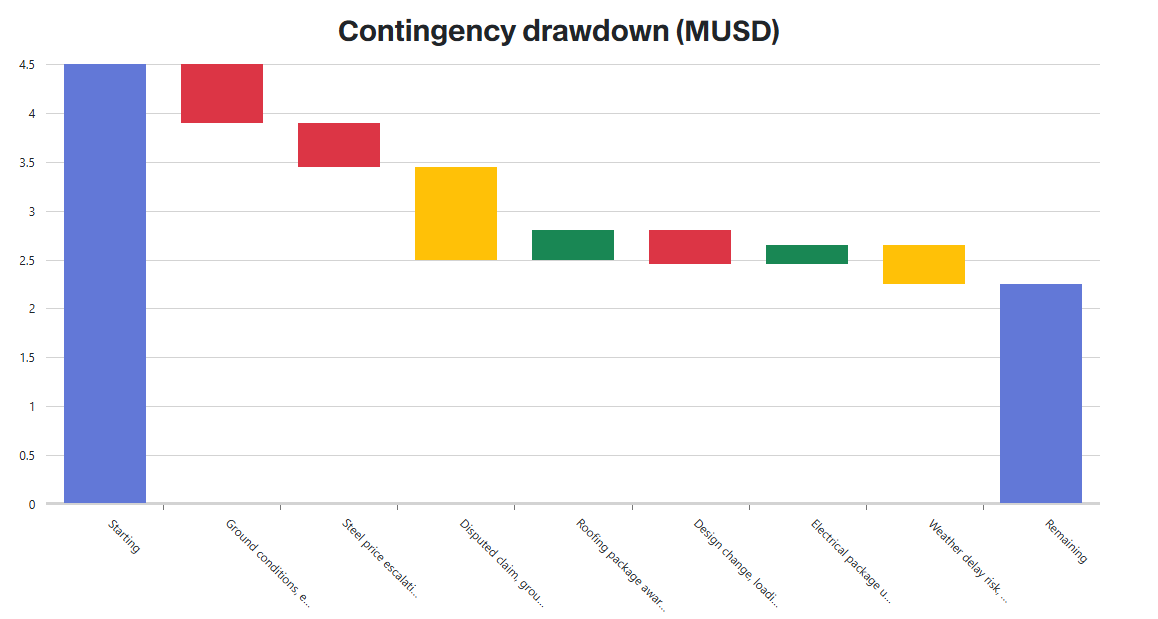 The waterfall chart shows the starting contingency, each overspending, saving and provision item in date order, and the remaining contingency.
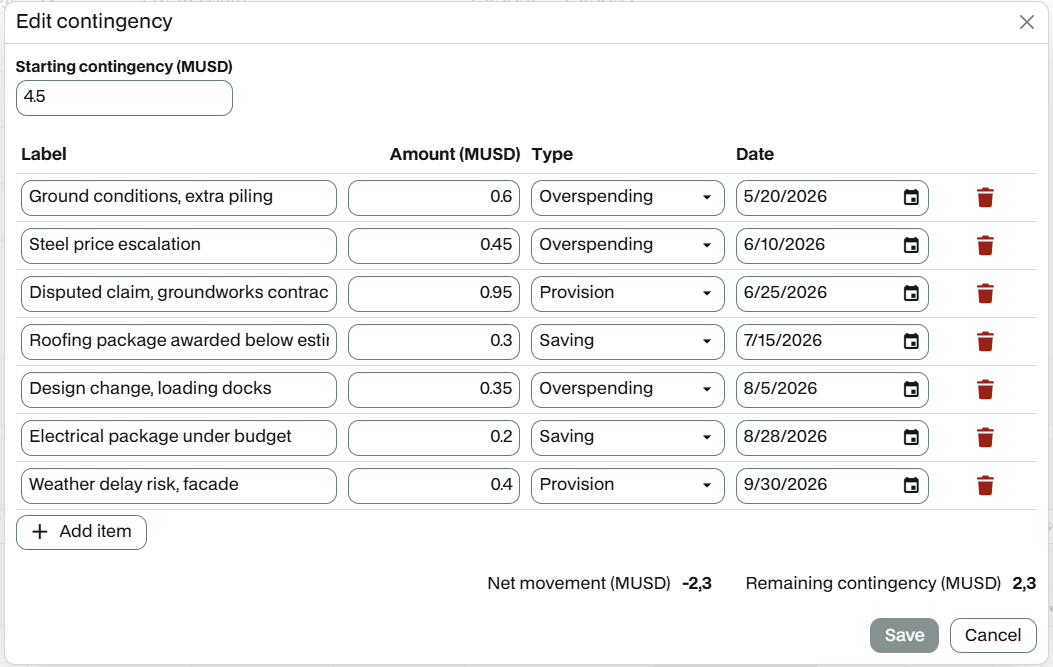 The Edit contingency dialog with the starting contingency, the drawdown items, and the net movement and remaining contingency at the bottom.
Project progress tracking and progress S-curve
Reporting physical progress has usually meant a separate file per project. The new Progress section on the request lets you enter planned and actual progress month by month and follow it on a progress S-curve. This is the first phase of the CAPEX report, together with the contingency drawdown chart.
📍 What's new
Monthly progress entry: Enter planned and actual progress as monthly percentages. Cumulative rows and a Total column show how far the project has come.
Plan locked at final approval: Planned Progress is locked and copied into Actual Progress as the starting point. Every actual month stays editable.
Cut-off date: Set to the final approval date and editable afterwards. Months before it count as actual, later months as forecast. The forecast start date does not affect progress.
Progress S-curve: Monthly bars and cumulative lines show planned, actual and forecast progress, with a red line at the cut-off date. A reporting period limits the grid and chart to the months you need.
Log and export: Every change is recorded in a new Progress tab under the request logs, and progress values are exported to the new
capex_request_progresstable in the reporting database export.
🔧 Configuration: The Progress section is part of the CAPEX report feature, which is off by default, and is not available on additional requests. Contact Customer Success to switch it on for your environment.
Later phases add a cost S-curve and a way to correct and rebaseline a locked plan. Until then, Planned Progress cannot be changed after final approval.
👉 Learn more about project progress tracking
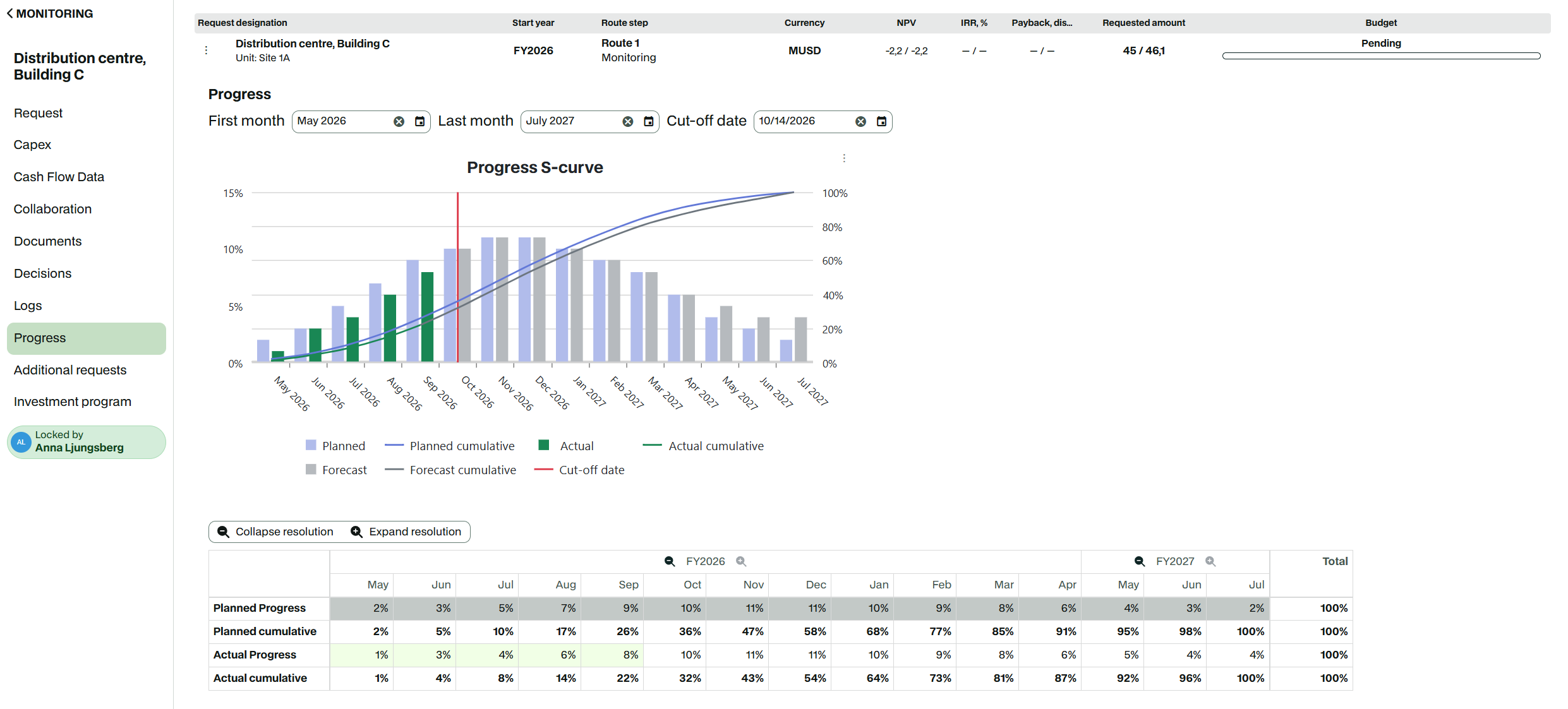 The Progress section shows monthly planned and actual progress, the cumulative rows and the progress S-curve.
Actual months and year totals in the expenditure grid
When you expand a year in the expenditure grid, it now keeps its year total in view. This helps when you work with one Capex line and want the overview while editing months.
📍 What's new
Year total while expanded: An expanded fiscal year keeps a read-only year total column at the start of its months. Collapse the year to edit the total directly again.
Live totals: Year totals, the grand total and the footer sums update as you type, before you save.
Actual months marked: Months that contain actuals after the decision have their own look, so you can tell them apart from cells that are only locked. A quarter or year gets the actual look when all its months are actuals.
📌 Note: Which cells you can edit has not changed. Locks, the forecast start date and period close work as before.
👉 Learn more about expenditures
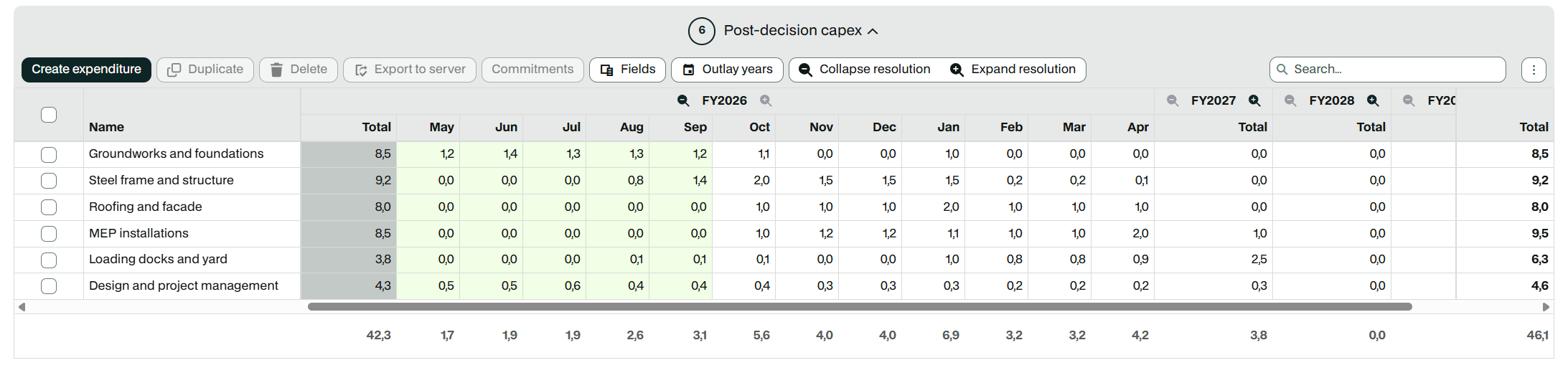 An expanded year keeps its total visible, and actual months are marked separately from locked cells.
Calculated values in the request log
Until now, a value that changed because an expression recalculated left no trace in the request log. Calculated property values are now logged at request and expenditure level, for both money and non-money properties.
📍 What's new
Old and new value: Each entry shows the previous value, the new value and when it changed.
Cause of the change: A new Action column shows what triggered the recalculation, for example a property edit, an import, a workflow transition, a period close or a recalculation started by an administrator. The user is shown where there is one. Imports show the integration user.
One entry per action: A recalculation that leaves the value unchanged is not logged.
📌 Note: Logging starts from the upgrade. Changes made before 5.3.7 are not added afterwards. Values from aggregation rules and values set by model are not logged yet.
👉 Learn more about request logs
Request relationships
It is now easier to see how requests belong together without opening each one. Three new read-only request properties show the related request by name. They are normal Capex request properties, so you can add them to request forms as well as to Power Mode.
📍 What's new
Investment program: Shows the investment program a request belongs to. It replaces the Investment program ID property, which could be edited.
Parent request: Shows the project an additional request was created for. With Request More Funds, this is the project that gets the extra funds. With Reallocate Funds In or Transfer Funds Out, it is the project the funds are taken from.
Beneficiary request: Shows the project that receives the funds in a reallocation or transfer.
In Power Mode, the new properties work like any other column: you can filter, sort and group on them, save them in layouts and export them to Excel. A request with only a parent request is a Request More Funds request. A request with both a parent and a beneficiary request is a reallocation or transfer.
📌 Note: Investment program cannot be edited. If your request forms or Power Mode layouts use Investment program ID, check them after the upgrade.
📌 Note: When you group on these columns, amounts moved by a transfer can be counted on both sides of the transfer in group sums.
👉 Learn more about investment programs and sub-requests
👉 Learn more about additional requests and reallocating funds
Document links to SharePoint and OneDrive
Supporting files often already live in Microsoft 365. You can now link a SharePoint, OneDrive or other Microsoft 365 file to a request instead of uploading a copy, so the request always opens the current version of the file.
📍 What's new
Document links section: A new section at the bottom of the Documents tab lists the links, with their title and the date they were added or last changed.
Add link: Paste the address of the file. If the title is empty, Weissr suggests one from the address.
Opens in Microsoft 365: Click a link to open the file in a new tab, in the desktop app or in Office for the web. Several people can work in the same file at once.
Edit and delete: Change the title or address of a link, or delete it. Deleting a link removes only the link, not the file.
📌 Note: Weissr stores only the title and the address, never the file. Access to the file is controlled in Microsoft 365, so a user without access sees Microsoft's access-denied page. Only Microsoft 365, SharePoint and OneDrive links are supported.
⚠️ Important: uploading attachments now requires edit permission
To upload an attachment, or a new version of one, you now need edit permission on the request. This is the same permission as for document links. If you could upload attachments before the upgrade and now get an access denied message, ask your administrator to check your permissions.
👉 Learn more about document links
More options when you approve from email
The confirmation page you reach from an approval email now offers the same options as the Decisions tab. You can add a comment, choose who gets notified and select the decision-maker for the next step.
An email action now only approves the step the email was sent for. If that step is already approved, or the request has moved on, nothing is approved and you are told that the step is no longer waiting for you.
👉 Learn more about approvals from email
Weissr Capex Strategy
Capex strategy process rail
The alternative form now shows where the alternative sits in the Capex strategy process. A read-only rail above the Summary and Form tabs shows the four stages: Where we are, What we can do, How good we can become, and Recommendation for action.
📍 What's new
Stage by alternative type: Base Alternatives and Division Base Alternatives are in stage 1, Strategic Building Blocks in stage 2 and Strategic Alternatives in stage 3.
Final stage for the current strategy: Stage 4 is reached when the alternative is approved as the current strategy.
Position text: The rail tells you where you are, for example Stage 2 of 4.
👉 Learn more about alternative forms
 The process rail highlights the stage of the alternative you are working on.
Link to Base Alternative in External Data
The Link to Base Alternative action you know from the cash flow grid is now available in the External Data grid of Strategic Building Blocks and Strategic Alternatives. Linked cells follow later changes in the Base Alternative, so you no longer need to copy values by hand.
The action uses the same menu and rules as in the cash flow grid.
Export, cell log, reset and delete work the same way as for existing links.
🔒 You need permission to update External Data, and the project must be unlocked. The action is not offered in the Base Alternative itself.
👉 Learn more about cash flow models in Capex Strategy
Base Alternative row function in the model builder
A new row function in the model builder returns the value of a row as it is calculated in the Base Alternative. Use it when an alternative should always compare against, or build on, the Base Alternative figures. In the model builder you write it as BASE(row_reference).
The function works in Capex Strategy models. Capex Management models reject it when you save.
If the row or node does not exist in the Base Alternative, the function returns 0.
Sensitivities of the current alternative do not apply to the Base Alternative value.
A manual input in the cell overrides the function.
You can also type the function directly in a cash flow cell of a Strategic Building Block or Strategic Alternative. There you use
ALT(row_reference; "alternative_short_name")with the short name of the Base Alternative, for example=ALT(M22; "b").
👉 Learn more about the BASE function
Copy and paste in the cash flow sheet and model builder
Copy and paste in the cash flow sheet and the model builder now behaves like Excel, including pasting a range vertically.
👉 Learn more about copying and pasting in the cash flow model
Performance
These changes make Weissr more responsive when many people work at the same time and right after a restart.
Multi-user performance: Weissr performs better when many users work in it at the same time.
After an update or restart: Weissr starts faster after an update or restart.
Bug fixes
These fixes correct problems found in earlier versions.
Capex Management
Depreciation and tax shield after import: Depreciation and tax shield in the cash flow model were not recalculated after an actuals or transactional data import.
Calculated property errors: In the request form and Power Mode, a calculated property could show #ERR without saying what was wrong. A Replace expression that correctly returned an empty value was also shown as an error.
Calculated expenditure properties in the Capex tab: A calculated expenditure property that reads the total requested amount was not recalculated when you changed an outlay or added an expenditure.
Category group aggregation: Aggregation by category group was not recalculated after a category change.
Disabled external users in user properties: When a user-type property held a disabled external user, the value was missing on the request.
Request log: The request log could fail to open for some requests.
Request Monitoring: Users who are not superusers saw an unnecessary "User has no permission" error on the Request Monitoring tab.
Select all in Capital Budgeting: With the Select all checkbox checked but no requests selected, an action in a budget was applied to every request in the budget.
Sending actuals through the API: Integrations that sign in with OAuth could not send actuals to Weissr.
Scheduled actuals import: Switching on the scheduled actuals import or changing its schedule had no effect until the server was restarted. The change now takes effect after a configuration refresh.
Capex Strategy
Deleting a large division: Deleting a division with many Strategic Building Blocks and Strategic Alternatives, for example 200 of each, failed with an error.
Stability in Capex Strategy projects: Projects are more stable when several calculations run at the same time or when a division is created.
Duplicating an asset: Duplicating an asset did not copy its reinvestment updates.
Sites shown as changed: A site created in the Base Alternative could be shown as changed in a Strategic Alternative after several cash flow cell changes and switching between Strategic Alternatives.
Site comparison chart: A site created in a Strategic Alternative was not shown in the chart when you selected it in the site comparison of a site report.
Edit formula mode: In the cash flow, a Machines block cell used in a formula was not highlighted in edit formula mode after the cell was reset.
Percentage cells: Entering a digit in a percentage cell with an expression in a model sheet multiplied the value by 100.
Comma as decimal separator: A comma decimal separator was read as a thousand separator when you pasted or entered a value in a numeric cell.
Asset ledger year validation: The validation message said a year could be equal, but equal years were rejected.
Moving an asset in the asset ledger: Dragging an asset onto another category reordered it within its own category instead of moving it.
Investment plan export: Smaller capex was missing from the Investment plan export on sub-industry level.
Report charts: The loading indicator showed every time you turned a series on or off in a report chart.
Vertical Investment plan totals: The yearly total left out a reinvestment when one of its distributed outlays was deleted.
Investment map colours: An asset box lost its colour after the project was reloaded.
All applications
Decimals in Weissr Assistant: The assistant showed values with an inconsistent number of decimals in its answers.
Administration
Insert tags in Capex Strategy notifications: The insert tags menu closed as soon as it opened, so you could not pick a tag.
Expression field in Properties: In Admin > CM > Properties, the expression field did not grow to fit the expression when you opened a property.
Context menu in Properties: The context menu in Admin > CM > Properties did not close when you clicked outside it.
User provisioning
Status of user group synchronization: The integration log no longer shows a successful status when user group synchronization for external users has failed.
Skipped users in the integration log: When a disabled user is skipped during user group synchronization and not linked to a group, the integration log now counts that user as skipped instead of showing 0.