
4 min read
Documents
The Documents tab holds the files that belong to an alternative in Capex Strategy, such as supplier quotes, background reports or the workbooks behind your cash flow figures. Anyone with access to the alternative and the right permission can download them. Every upload, replacement and deletion is recorded in the Logs tab.
Where to find the Documents tab
Open the project and the alternative you want to work in. This can be a base alternative, a strategic alternative or a strategic building block.
Select Documents in the menu on the left.
Documents belong to the alternative as a whole, not to a node. Selecting a different node in the tree does not change the list.
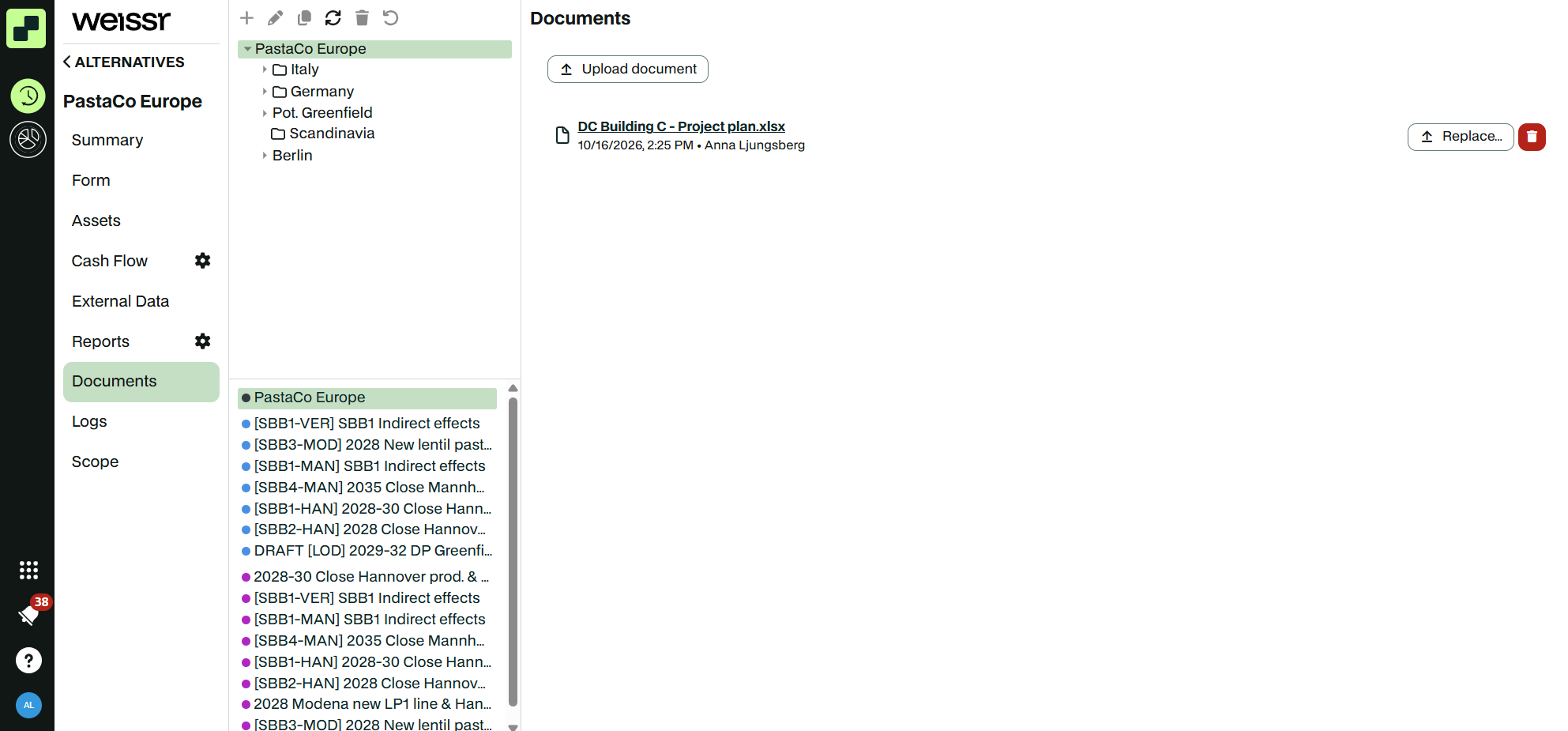 The Documents tab of an alternative, with the Upload document button above the list.
What the document list shows
Each document in the list shows:
A file icon and the file name.
The date the document was last changed.
The name of the person who last changed it.
When an alternative has no documents yet, the heading reads No documents.
📌 Note: The list does not show file size or file type. The file name is the name the file had on your device when you uploaded it.
Uploading a document
Go to the Documents tab of the alternative.
Click Upload document.
Choose a file from your device.
The document appears in the list once the upload finishes. You can upload one file at a time.
Supported files: any file type, up to 10 MB per file. A larger file is rejected with the message "File size exceeds the limit of 10MB".
💡 Tip: Give the file a clear name before you upload it. You cannot rename a document in Weissr, and Weissr does not stop you from uploading two files with the same name.
Downloading a document
Click the file name or the file icon. The file downloads to your device in its original format.
Replacing a document
Replace a document when you have a newer version of the same file.
Click Replace... next to the document.
Click Replace to confirm.
Choose the new file from your device.
The new file takes the place of the old one, and the document takes the new file's name.
⚠️ Warning: Replacing a document deletes the previous file. Weissr does not keep earlier versions. If you need the old version, download it before you replace it.
Deleting a document
Click the trashcan icon next to the document.
Click Delete to confirm.
⚠️ Warning: Deleting a document removes the file permanently. There is no undo.
Who can view and change documents
Access to the Documents tab is controlled by the Manage Documents permission. You also need access to the project and to the alternative itself.
Action | Required level of Manage Documents |
|---|---|
See the Documents tab and download documents | Read |
Upload, replace and delete documents | Edit or Create |
If you can see the documents but not the Upload document, Replace... or trashcan buttons, you have Read access only. Ask your administrator if you need to make changes.
👉 Learn more about how permissions work in Weissr
Documents on locked or deactivated alternatives
You can view and download documents on a locked alternative, or in a locked project version. The Upload document, Replace... and trashcan buttons are hidden.
Documents on a deactivated alternative cannot be changed either. Weissr rejects the change with the message "Cannot edit data of a deactivated alternative". Activate the alternative first, or ask a user with the Manage Alternative States permission to do it.
👉 Learn more about alternative statuses and locking
Documents when you duplicate or delete an alternative
Duplicating an alternative copies all its documents to the new alternative.
Copying a project copies the documents of every alternative in it.
Creating a new, empty alternative starts with no documents.
Deleting an alternative deletes its documents.
Copied documents are separate files. Replacing or deleting a document in the copy does not affect the original, and the other way round.
Tracking changes to documents
Every change to a document is recorded in the alternative's log.
Select Logs in the menu of the alternative.
Open the Documents tab.
Column | What it shows |
|---|---|
Action | Alternative document created, Alternative document updated (a replacement) or Alternative document deleted |
File name | The name of the file the change applied to |
Date | The date and time of the change |
User | The person who made the change |
The newest changes are listed first. You can filter, search and sort the list. The document log is visible only to users with the Manage Documents permission.