
1 min read
Customize Your Fields in the Investment Plan.
This guide will help you tailor your Investment Plan view by selecting and customizing fields. Learn how to add, reorder, and resize fields to optimize your data management and analysis within Weissr. Follow the steps below to get started.
Selecting Fields
Click on Fields to open the field selection pop-up.
Search or scroll to find and select the fields you want to display.
Selected fields are automatically added to the end of the fields section.
Click on Apply
Removing Fields
Click on Fields to open the field selection pop-up.
Click the X next to the field you want to remove.
Click on Apply.
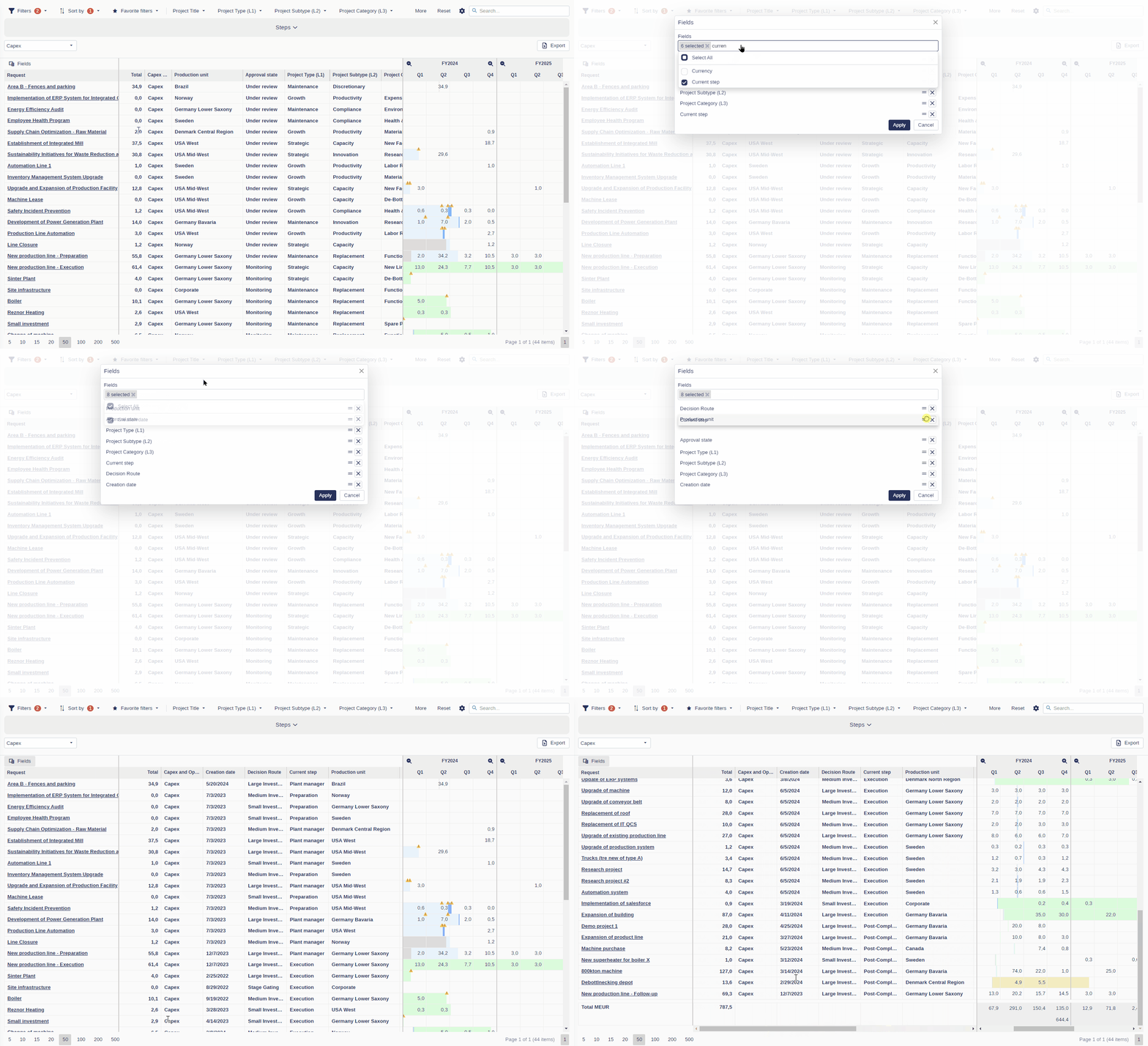 Select any field you want visible in the investment plan.
Customizing the Field Order
From the Field Selection Pop-up
Click on Fields to open the field selection pop-up.
Drag and drop the fields to rearrange them as desired.
Click on Apply.
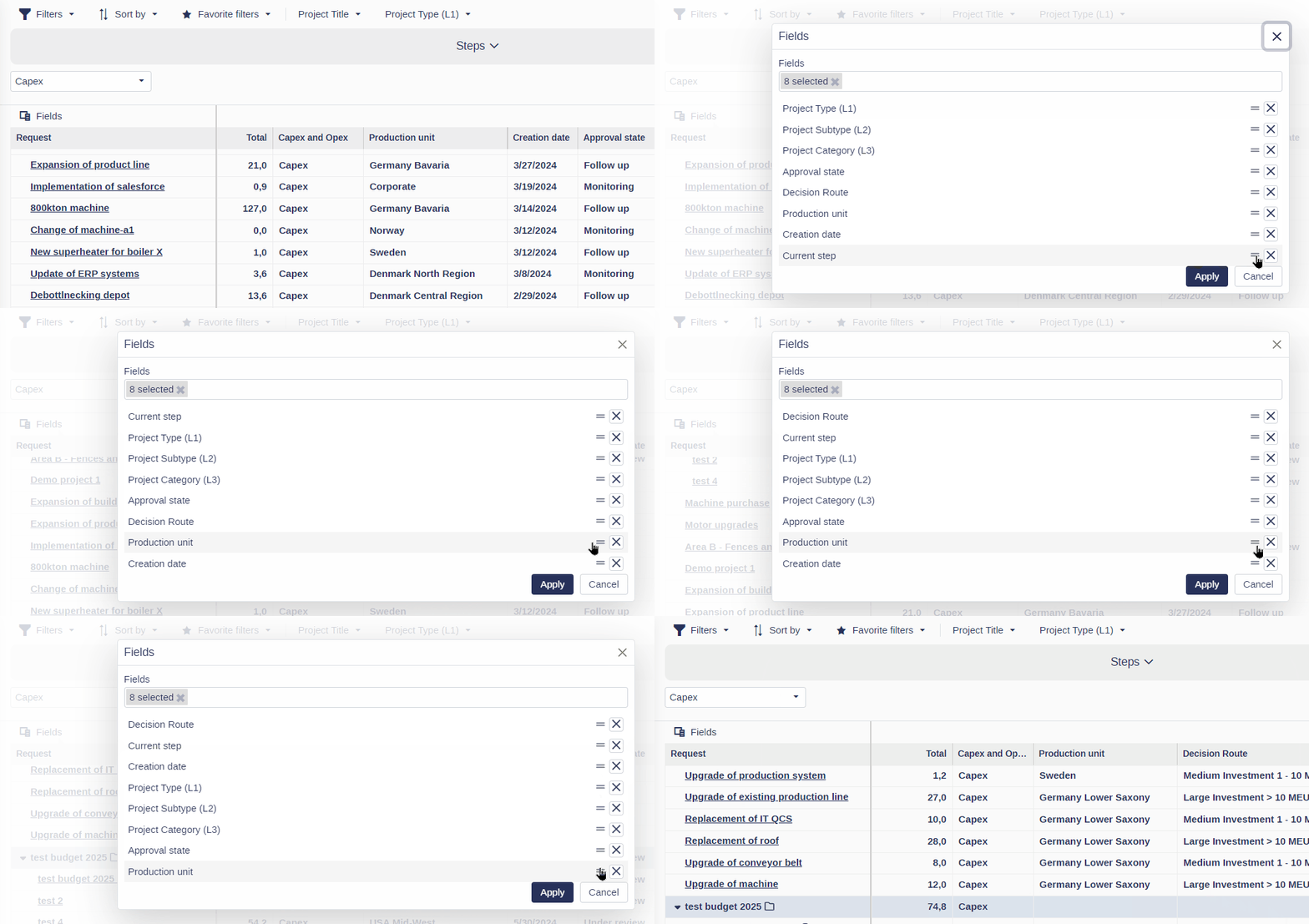 Reorder fields from the field selection pop-up.
From the Field Section
Click on the field name.
Drag and drop it to the preferred position to reorder.
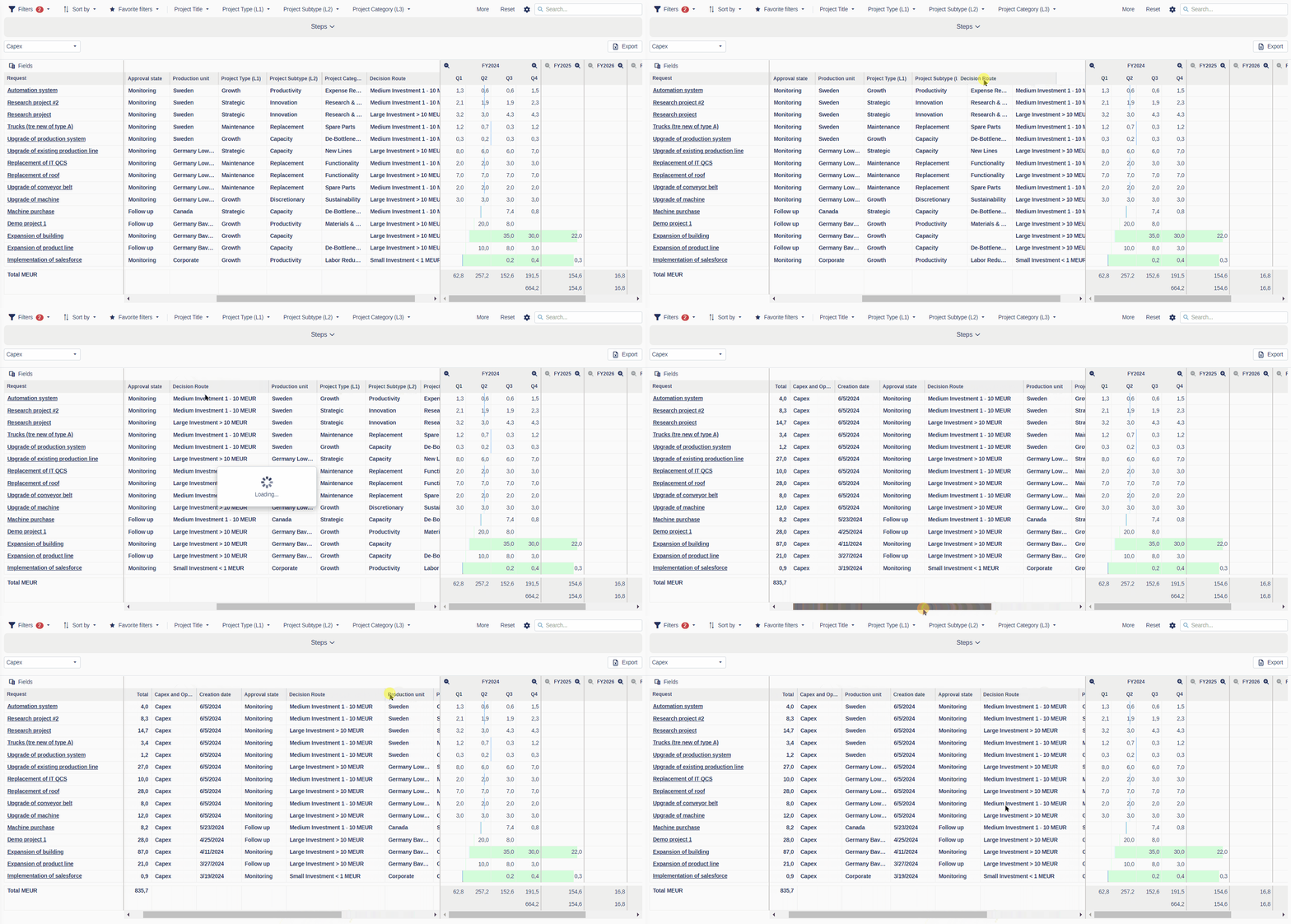 Reorder fields by drag and drop.
Resize Field Width
Click on the border to the right of the field name you want to resize.
Drag and drop the border to the desired length.
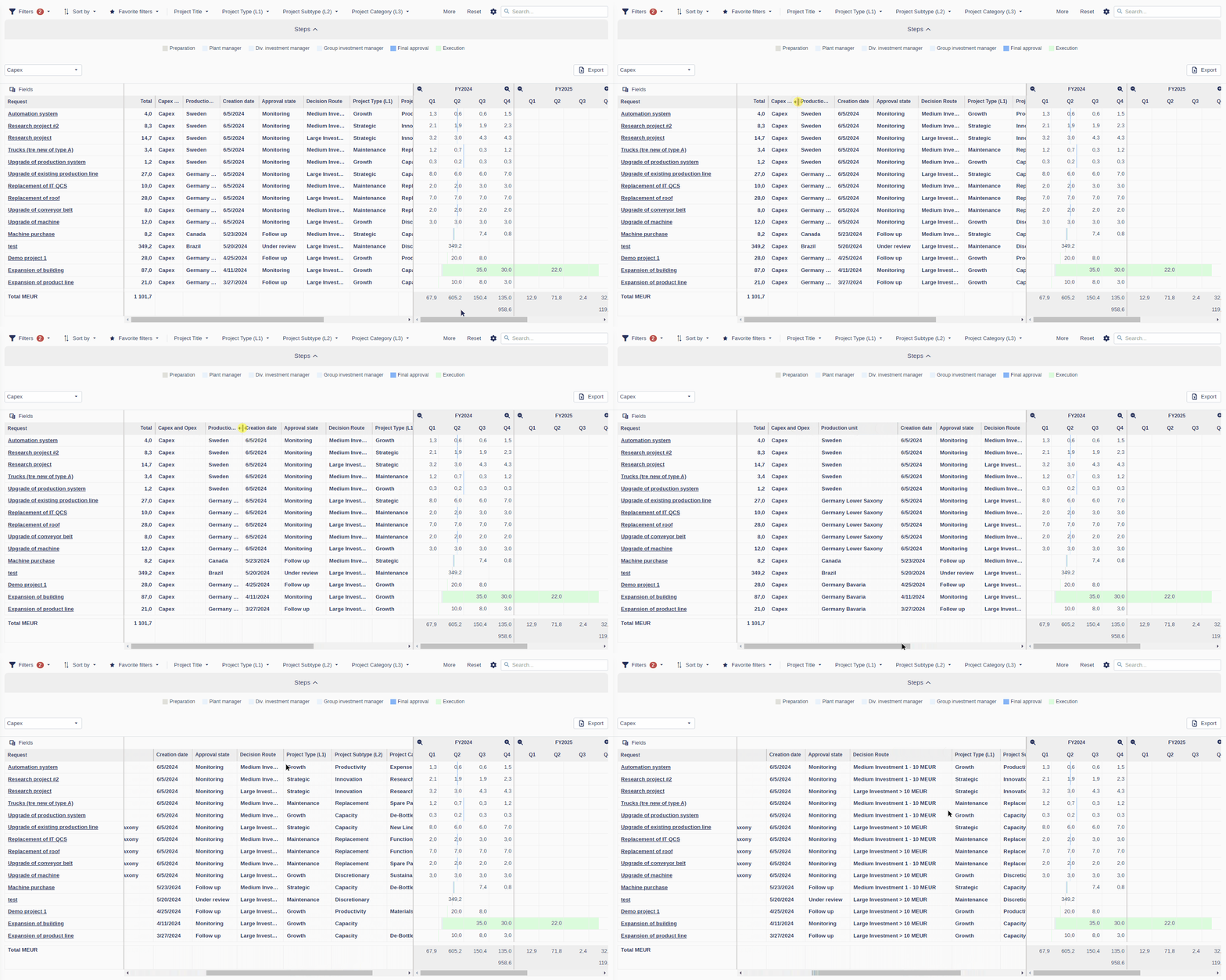 Resize columns by dragging the edges of column headers to optimize readability